Connect Mistral Vibe to Cirrux
Add Cirrux as a connector in Mistral Vibe and it can read and organize your mail, write drafts and manage your calendar for you. Setting it up takes about a minute.
You’ll need this server URL in step 2:
https://mcp.cirrux.co/mcpSteps
Open Connectors in Mistral Vibe
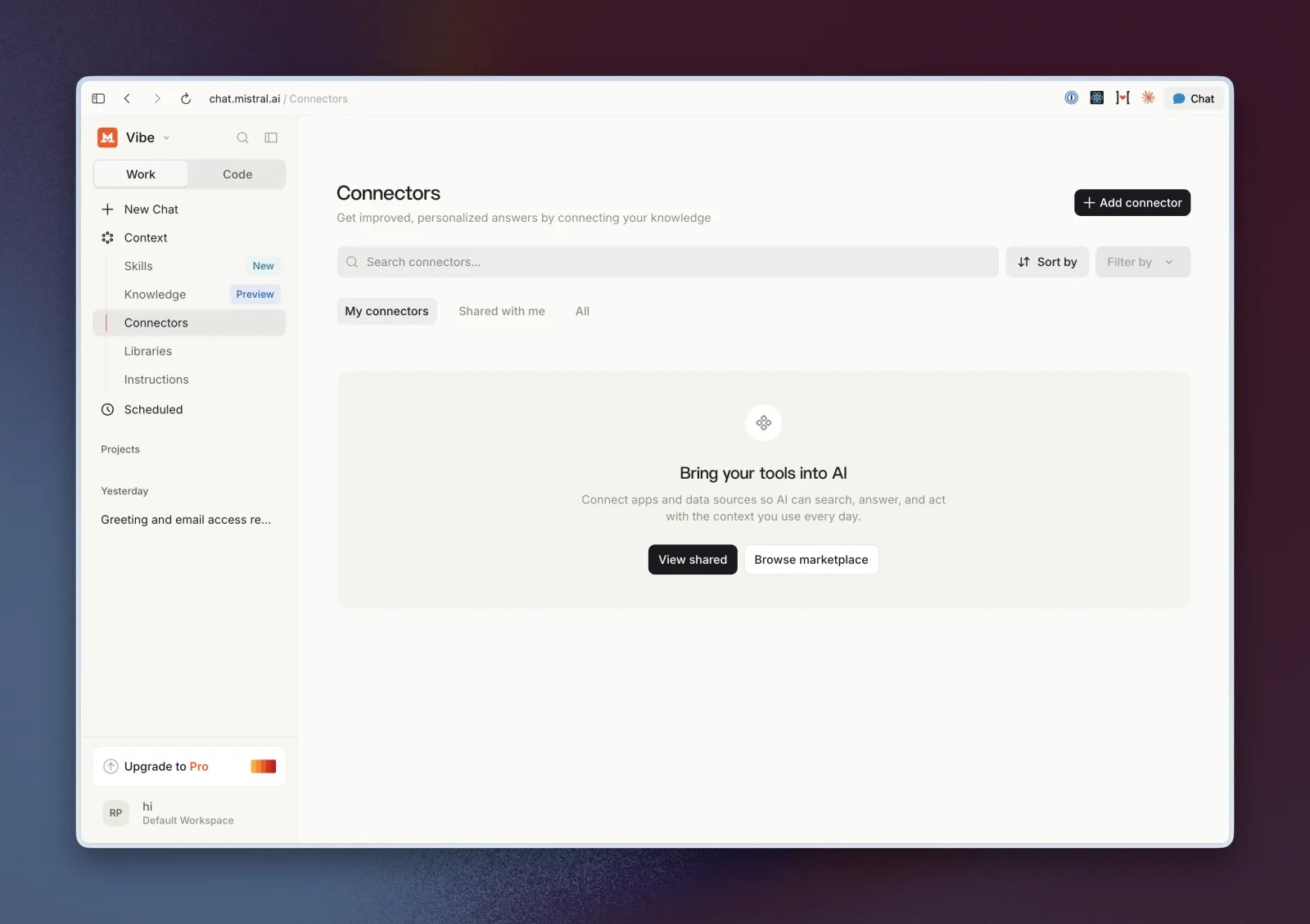
Go to chat.mistral.ai. In the sidebar, open Context and choose Connectors. Then click Add connector in the top right.
Add Cirrux as a custom connector
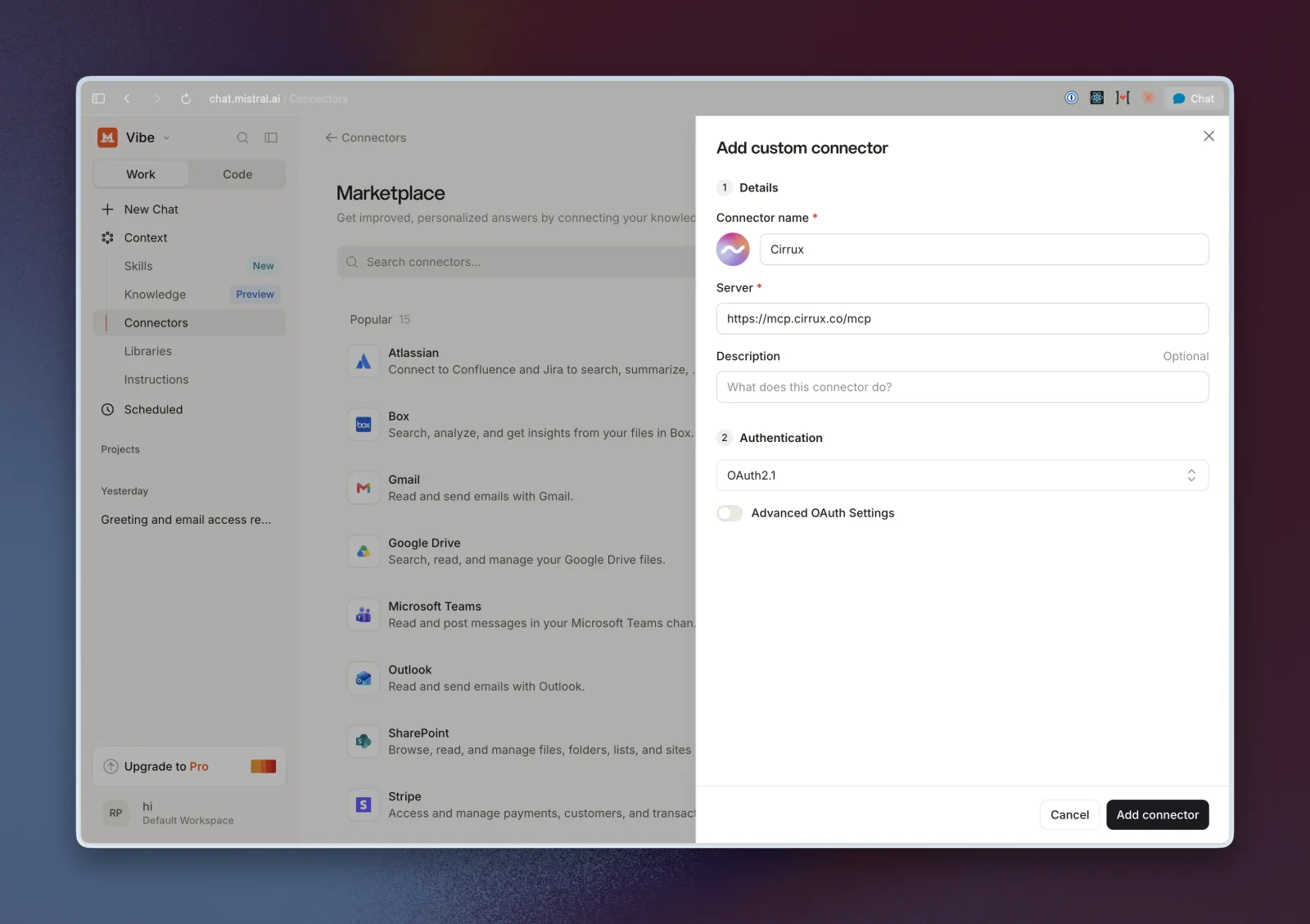
Choose to add a custom connector and fill in:
- Connector name: Cirrux
- Server:
https://mcp.cirrux.co/mcp - Authentication: OAuth2.1, which is the default. Leave Advanced OAuth Settings off.
Click Add connector.
Sign in to Cirrux and approve
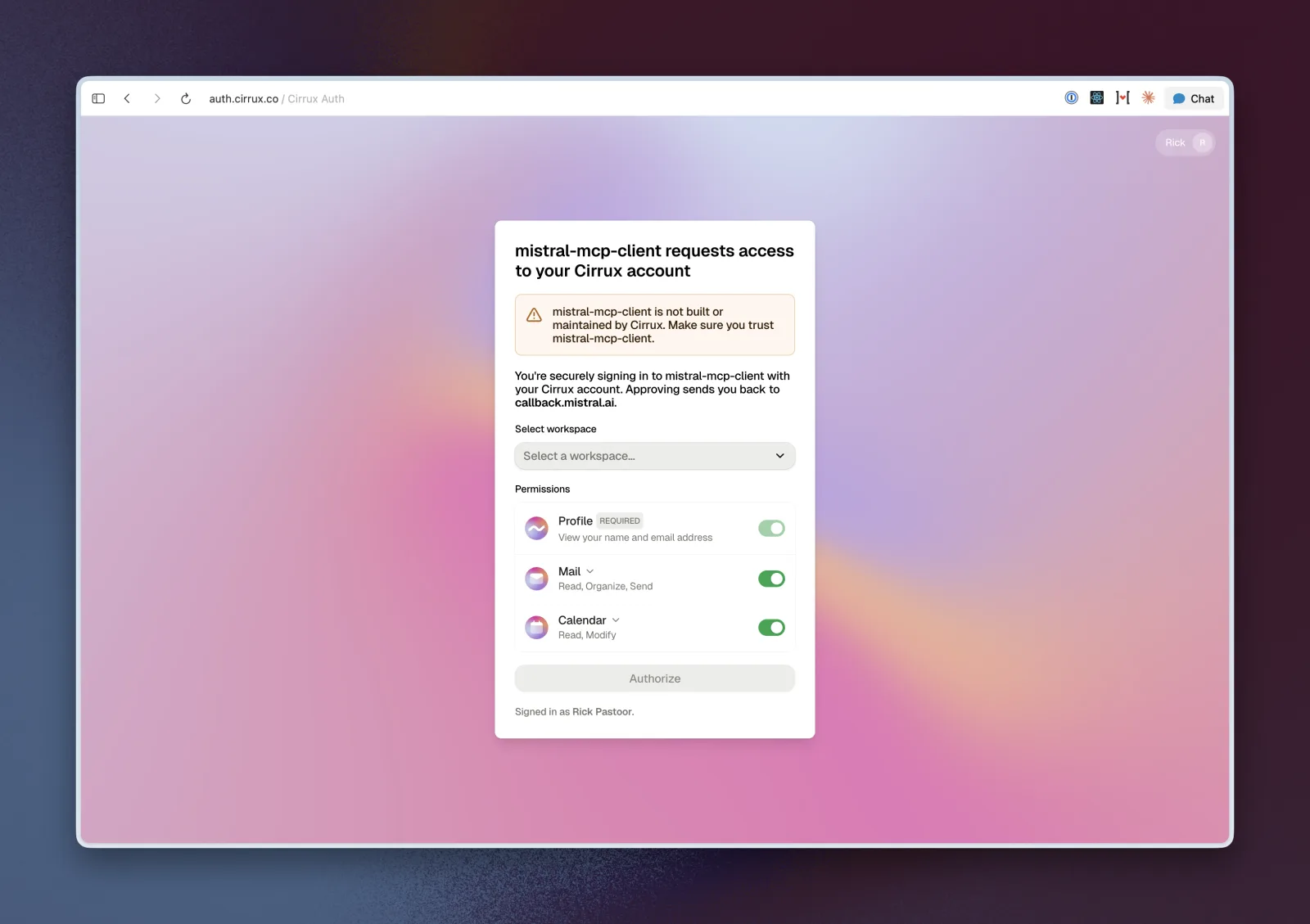
Mistral Vibe sends you to Cirrux to sign in. The page names the app as mistral-mcp-client: that is Mistral Vibe.
Select the workspace you want to connect and check the permissions. Mail and Calendar are on by default; open the dropdown next to either to grant only part of it, such as reading mail without sending. Then click Authorize.
Check the connection and start a chat
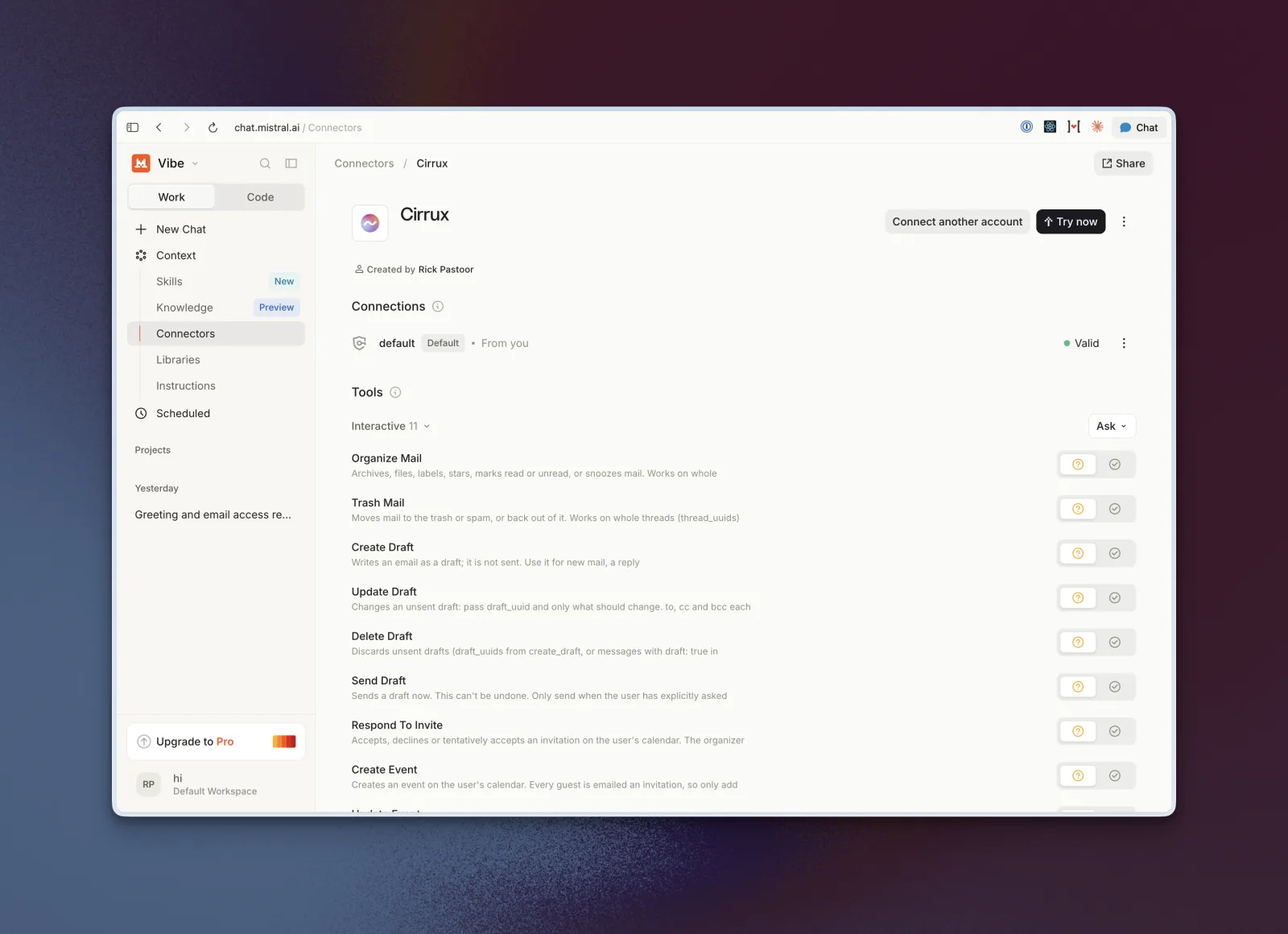
You’re back in Mistral Vibe, on the Cirrux connector. The connection shows as Valid, with a list of everything the connector can do.
Each tool is set to Ask, so Mistral Vibe checks with you before it archives, drafts or sends anything. You can allow tools you trust to run without asking, but we recommend leaving Send Draft on Ask.
Click Try now and ask something like “What came in from my accountant this week?”